About Flexbox


So, when we made from the container a flex display, it's items will be flex-items and both should have specific properties:

Flex Container Properties:
  • flex-direction
  • flex-wrap
  • flex-flow
  • justify-content
  • align-items
  • align-content
Flex Items Properties:
  • order
  • flex-grow
  • flex-shrink
  • flex-basis
  • flex
  • align-self


Above, we seted up two columns (one for each flex's properties) with flex display, so now are displayed in the same row
(for spaceing we made: justify-content: space-evenly;).
If we want to change the direction of those items, as to be showen in a column, we have to use the flex-direction function and inset the column value.
The default flex direction is row, so the main axis is horizontal and the positions of the items will be from left to rigt and the cross axos will be vertical.
In the column direction the main axis will be vertical and the cross axis horizontal.
Flexbox is used for positioning the elements in the page. The landmark for position is the horizontal and vertical axis of the page.
Generaly, for better understanding of the code, we'll use a section of the html in which will insert a class name of "container" and inside this main class, will create children classes for the elements whitin the container.
This method will help us to select more efficintly the elements we'll want to style in the CSS file.

The Flexbox's properties and there's values, are:

Properties for the parent class:

Display – By using the display:flex; propertie, we set the container in the flex mode (inline or block – depending of the given value) and also it enables a flex context for all its direct children elements.
Important: the CSS's columns properties/values will not be applied inside a flex container, only the flex properties and their value will be applied:

.container {
Dispay: flex; or inline-flex
}


  1. Flex-direction – this propertie will set the main axis of the container and its inner elemets and it has the following values:
    • :row (default) - left to right in ltr; right to left in rtl
    • :row-reverse - right to left in ltr; left to right in rtl
    • :column - same as row but top to bottom
    • :column-reverse - same as row-reverse but bottom to top
  2. Flex-wrap – this propertie let the container's inner elements to move to the next line if we want the elements to have a certain dimmension inside the container's dimension. (if the container width is set at 1000 px and we want to have 10 boxes inside of it with a width of 200px for each one, we'll have 5 boxes in the first line and the other 5 will move to the next line. If the width of the continer will be smaller the element will maint their dimension and move to the next line as to fit in the container new dimension).

    So, by default, flex items will all try to fit onto one line. You can change that and allow the items to wrap as needed with this propertie.

    Values:

    • :nowrap (default) - all flex items will be on one line
    • :wrap - flex items will wrap onto multiple lines, from top to bottom.
    • :wrap-reverse - flex items will wrap onto multiple lines from bottom to top.
  3. Flex-flow – it is a shorthand for the properties: flex-direction and flex-wrap and ti defines the direction and the straching mode of the elements. The default value is row direction and nowrap ("row nowrap")

    So the values of the function are a combination of: flex-direction and flex-wrap:

    .container {
    Flex-flow: column wrap;
    }

  4. Justify-content: - defines the horizontal aligment for the flex elements (row for default value of the flexbox propertie).

    Values:

    • :flex-start – aligns the elements at the start of the row, from right to left according with the preseted aligment
    • :flex-end – aligns the elements at the end of the row, from right to left according with the preseted aligment
    • :center – aligns the elements in the center of the row
    • :space-between – aligns the elements with a equal space between them, but not from the margin of the container
      the first ant the last element will be near the container edge. The first item will have one unit of space against the container edge, but two units of space between the next item because that next item has its own spacing that applies
    • :space-around – aligns the items with same spece between them and also between the edge of the container. But it has to take into consideration that the space between them will be twice more than the space between the edge of the container at the nearest element.
    • :space-evenly – aligns the elements with same space between them and also from the edge of the container.
    • The followings values are not supported by all the browsers yet:

    • :start - items are packed toward the start of the writing-mode direction.
    • :end - items are packed toward the end of the writing-mode direction.
    • :left - items are packed toward left edge of the container, unless that doesn’t make sense with the flex-direction, then it behaves like start.
    • :right - items are packed toward right edge of the container, unless that doesn’t make sense with the flex-direction, then it behaves like end

  5. align-items: defines the vertical aligmnet for the flex container elements

    Values:

    • :stretch (default) - stretch to fill the container (still respect min-width/max-width)
    • :flex-start / start / self-start - items are placed at the start of the cross axis. The difference between these is subtle, and is about respecting the flex-direction rules or the writing-mode rules.
    • :flex-end / end / self-end - items are placed at the end of the cross axis. The difference again is subtle and is about respecting flex-direction rules vs. writing-mode rules.
    • :center - items are centered in the cross-axis
    • :baseline: items are aligned such as their baselines align
  6. align-content: This property only takes effect on multi-line flexible containers, where flex-wrap is set to either wrap or wrap-reverse). A single-line flexible container (i.e. where flex-wrap is set to its default value, no-wrap) will not reflect align-content because the effect of the propertie affects the speaces between the lines on which are the elements placed.

    Values:


    • :normal (default) - items are packed in their default position as if no value was set.
    • :flex-start / start - items packed to the start of the container. The (more supported) flex-start honors the flex-direction while start honors the writing-mode direction.
    • :flex-end / end - items packed to the end of the container. The (more support) flex-end honors the flex-direction while end honors the writing-mode direction.
    • :center - items centered in the container
    • :space-between - items evenly distributed; the first line is at the start of the container while the last one is at the end
    • :space-around - items evenly distributed with equal space around each line
    • :space-evenly - items are evenly distributed with equal space around them
    • :stretch - lines stretch to take up the remaining space

Flex Items Properties:

  1. Order
  2. By default, flex items are laid out in the source order (starting with item 0).
    However, the order property controls the order in which they appear in the flex container. So the first flex item doesn't have to appear as the first item in the layout: :

    div class="flex-container">
    div style="order: 3">1 /div>
    div style="order: 2">2 /div>
    div style="order: 4">3 /div>
    div style="order: 1">4 /div>
    /div>

  3. flex-grow
  4. This defines the ability for a flex item to grow in the alocated space, if it's necessary.
    It accepts a unitless value that serves as a proportion.
    It dictates what amount of the available space inside the flex container the item should take up.
    In other words, the flex-grow property specifies how much a flex item will grow relative to the rest of the flex items.

    If all items have flex-grow set to 1, the remaining space in the container will be distributed equally to all children.
    If one of the children has a value of 2, that child would take up twice as much of the space either one of the others (or it will try, at least).
    The value must be a number, default value is 0.
    Negative numbers are invalid

    .item {
    flex-grow: 4;// default 0 and we asked the item to be 4 times more then the default value
    }

  5. flex-shrink
  6. This defines the ability for a flex item to shrink if necessary.
    The flex-shrink property specifies how much a flex item will shrink relative to the rest of the flex items.
    Negative numbers are invalid.

    .item {
    flex-shrink: 3; /* default 1 */
    }
    If we set a global shrink value at all flex items, and we want some item to not shrink, we will select those item and make 'flex-shrink: 0'

  7. flex-basis
  8. The flex-basis property specifies the initial length of a flex item.

    This defines the default size of an element before the remaining space is distributed. It can be a length (e.g. 20%, 5rem, etc.) or a keyword. The auto keyword means “look at my width or height property” (which was temporarily done by the main-size keyword until deprecated). The content keyword means “size it based on the item’s content” – this keyword isn’t well supported yet, so it’s hard to test and harder to know what its brethren max-content, min-content, and fit-content do.

    .item {
    flex-basis: | auto; /* default auto */
    }

    div class="flex-container">
    div>item1/div>
    div>item2/div>
    div style="flex-basis: 200px">3/div>
    div>item4/div>
    /div>

    If set to 0, the extra space around content isn’t factored in. If set to auto, the extra space is distributed based on its flex-grow value.

  9. flex
  10. This is the shorthand for flex-grow, flex-shrink and flex-basis combined.
    The second and third parameters (flex-shrink and flex-basis) are optional.
    The default is 0 1 auto , but if you set it with a single number value, like flex: 5;, that changes the flex-basis to 0%, so it’s like setting flex-grow: 5; flex-shrink: 1; flex-basis: 0%;.

    .item {
    flex: none | [ <'flex-grow'> <'flex-shrink'>? || <'flex-basis'> ]
    }

    It is recommended that you use this shorthand property rather than set the individual properties. The shorthand sets the other values intelligently.
    .

  11. align-self
  12. This allows the default alignment (or the one specified by align-items) to be overridden for individual flex items.
    The align-self property specifies the alignment for the selected item inside the flex container.
    Please see the align-items explanation to understand the available values. .item { align-self: auto | flex-start | flex-end | center | baseline | stretch; } Note that float, clear and vertical-align have no effect on a flex item.



Exemple of Flexbox display

About CSS Grid


So, when we made from the container a grid display, it's items will be grid-items and both should have specific properties:

Grid Container Properties:
  • grid-template-columns
  • grid-template-rows
  • grid-template-areas
  • grid-template
  • grid-gap
  • justify-items
  • align-items
  • place-items
  • justify-content
  • align-content
  • place-content
  • grid-auto-rows
  • grid-auto-columns
  • grid-auto-flow
Grid Items Properties:
  • grid-column
  • grid-row
  • grid-area
  • justify-self
  • align-self
  • place-self


Unlike Flexbox, which, as we mentioned before, is one-dimensional layout and can create either row or column,
a CSS Grid allows us to create two-dimensional layouts with rows and columns.
We can specify the number of row and columns and also we can arange those as we like.

The CSS Grid's properties and there's values, are:

Properties for the grid conatainer:

Display – Defines the element as a grid container and establishes a new grid formatting context for its contents.
It has the following values:

.container {
Display: grid (generates a block-level grid); or inline-grid (generates an inline-level grid)
}


  1. grid-template-columns
    grid-template-rows
    – Defines the columns and rows of the grid with a space-separated list of values.
    The values represent the track size, and the space between them represents the grid line.
    Values:
    • track-size - can be a length, a percentage, or a fraction of the free space in the grid using the fr unit
    • line-name> – an arbitrary name of your choosing
    • e.g.
      .container {br> grid-template-columns: ... ...;
      as a:
      1fr 1fr
      minmax(10px, 1fr) 3fr
      repeat(5, 1fr)
      50px auto 100px 1fr
    • grid-template-rows: ... ...;
      e.g.
      min-content 1fr min-content
      100px 1fr max-content

      - Grid lines are automatically assigned positive numbers from these assignments (-1 being an alternate for the very last row).
      But you can choose to explicitly name the lines. Note the bracket syntax for the line names:
      .container {
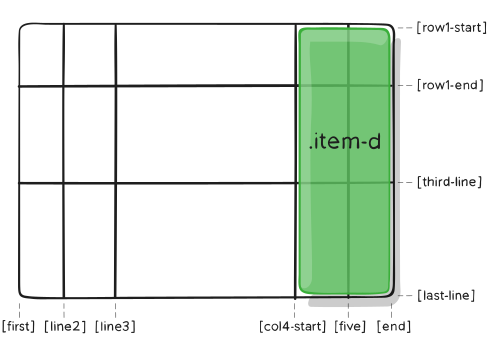
      grid-template-columns: [first] 40px [line2] 50px [line3] auto [col4-start] 50px [five] 40px [end];
      grid-template-rows: [row1-start] 25% [row1-end] 100px [third-line] auto [last-line];
      }
      Note that a line can have more than one name. For example, here the second line will have two names: row1-end and row2-start:

      .container {
      grid-template-rows: [row1-start] 25% [row1-end row2-start] 25% [row2-end];
      }
      If your definition contains repeating parts, you can usethe repeat() notation to streamline things:

      .container {
      grid-template-columns: repeat(3, 20px [col-start]);
      }
      Which is equivalent to this:
      .container {
      grid-template-columns: 20px [col-start] 20px [col-start] 20px [col-start];
      }

      If multiple lines share the same name, they can be referenced by their line name and count.
      .item {
      grid-column-start: col-start 2;
      }

      The fr unit allows you to set the size of a track as a fraction of the free space of the grid container. For example, this will set each item to one third the width of the grid container:

      .container {
      grid-template-columns: 1fr 1fr 1fr;
      }

      The free space is calculated after any non-flexible items. In this example the total amount of free space available to the fr units doesn’t include the 50px:

      .container {
      grid-template-columns: 1fr 50px 1fr 1fr;
      }
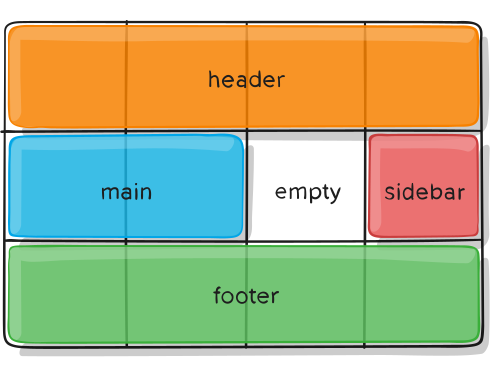
  2. grid-template-areas – Defines a grid template by referencing the names of the grid areas which are specified with the grid-area property. Repeating the name of a grid area causes the content to span those cells. A period signifies an empty cell. The syntax itself provides a visualization of the structure of the grid.

    Values:

    • grid-area-name - he name of a grid area specified with grid-area
    • . – a period . signifies an empty grid cell
    • none - no grid areas are defined
    .container {
    grid-template-areas:
    "grid-area-name> | . | none | ..."
    "...";
    }

    e.g.
    .item-a {
    grid-area: header;
    }
    .item-b {
    grid-area: main;
    }
    .item-c {
    grid-area: sidebar;
    }
    .item-d {
    grid-area: footer;
    }

    .container {
    display: grid;
    grid-template-columns: 50px 50px 50px 50px;
    grid-template-rows: auto;
    grid-template-areas:
    "header header header header"
    "main main . sidebar"
    "footer footer footer footer";
    }
    That’ll create a grid that’s four columns wide by three rows tall. The entire top row will be composed of the header area. The middle row will be composed of two main areas, one empty cell, and one sidebar area. The last row is all footer.

    Each row in your declaration needs to have the same number of cells.

    You can use any number of adjacent periods to declare a single empty cell. As long as the periods have no spaces between them they represent a single cell.

    Notice that you’re not naming lines with this syntax, just areas.
    When you use this syntax the lines on either end of the areas are actually getting named automatically.
    If the name of your grid area is foo, the name of the area’s starting row line and starting column line will be foo-start, and the name of its last row line and last column line will be foo-end.
    This means that some lines might have multiple names, such as the far left line in the above example, which will have three names:
    header-start, main-start, and footer-start.

  3. grid-template – A shorthand for setting grid-template-rows, grid-template-columns, and grid-template-areas in a single declaration.

    Values:

    • none – sets all three properties to their initial values
    • < grid-template-rows> / < grid-template-columns> – sets grid-template-columns and grid-template-rows to the specified values, respectively, and sets grid-template-areas to none

    .container {
    grid-template: none | < grid-template-rows> / < grid-template-columns>;}
    }
    It also accepts a more complex but quite handy syntax for specifying all three. Here’s an example:

    .container {
    grid-template:
    [row1-start] "header header header" 25px [row1-end]
    [row2-start] "footer footer footer" 25px [row2-end]
    / auto 50px auto;
    }

    That’s equivalent to this:

    .container {
    grid-template-rows: [row1-start] 25px [row1-end row2-start] 25px [row2-end];
    grid-template-columns: auto 50px auto;
    grid-template-areas:
    "header header header"
    "footer footer footer";
    }

    Since grid-template doesn’t reset the implicit grid properties (grid-auto-columns, grid-auto-rows, and grid-auto-flow), which is probably what you want to do in most cases, it’s recommended to use the grid property instead of grid-template.

  4. column-gap
    row-gap
    grid-column-gap
    grid-row-gap

    Specifies the size of the grid lines. You can think of it like setting the width of the gutters between the columns/rows.

    Values:
    < line-size> – a length value

    grid-gap
    A shorthand for row-gap and column-gap
    - Specifies the size of the grid lines. You can think of it like setting the width of the gutters between the columns/rows.

    Values:
    < grid-row-gap> < grid-column-gap> – length values

    .container {
    /* standard */
    gap: < grid-row-gap> < grid-column-gap>;

    /* old */
    grid-gap: < grid-row-gap> < grid-column-gap>;
    }

    Example:
    .container {
    grid-template-columns: 100px 50px 100px;
    grid-template-rows: 80px auto 80px;
    gap: 15px 10px;
    }

    If no row-gap is specified, it’s set to the same value as column-gap.


  5. justify-items Aligns grid items along the inline (row) axis (as opposed to align-items which aligns along the block (column) axis). This value applies to all grid items inside the container.

    For exemples visit css-tricks.com

    Values:

    • start – aligns items to be flush with the start edge of their cell
    • end – aligns items to be flush with the end edge of their cell
    • center – aligns items in the center of their cell
    • stretch – fills the whole width of the cell (this is the default)

    This behavior can also be set on individual grid items via the justify-self property.

  6. align-items Aligns grid items along the block (column) axis (as opposed to justify-items which aligns along the inline (row) axis). This value applies to all grid items inside the container.

    Values:


    • stretch – fills the whole height of the cell (this is the default)
    • start – aligns items to be flush with the start edge of their cell
    • end – aligns items to be flush with the end edge of their cell
    • center – aligns items in the center of their cell
    • baseline – align items along text baseline. There are modifiers to baseline — first baseline and last baseline which will use the baseline from the first or last line in the case of multi-line text.

    • Exemples may be found here...

  7. place-itemsplace-items sets both the align-items and justify-items properties in a single declaration.

    Values:


    • < align-items> / < justify-items> – The first value sets align-items, the second value justify-items. If the second value is omitted, the first value is assigned to both properties.
      For more details, see align-items and justify-items. This can be very useful for super quick multi-directional centering:

    • Exemples may be found here...

  8. justify-contentSometimes the total size of your grid might be less than the size of its grid container. This could happen if all of your grid items are sized with non-flexible units like px. In this case you can set the alignment of the grid within the grid container. This property aligns the grid along the inline (row) axis (as opposed to align-content which aligns the grid along the block (column) axis).

    Values:


    • start – aligns the grid to be flush with the start edge of the grid container
    • end – aligns the grid to be flush with the end edge of the grid container
    • center – aligns the grid in the center of the grid container
    • stretch – resizes the grid items to allow the grid to fill the full width of the grid container
    • space-around – places an even amount of space between each grid item, with half-sized spaces on the far ends
    • space-between – places an even amount of space between each grid item, with no space at the far ends
    • space-evenly – places an even amount of space between each grid item, including the far ends

    • Exemples may be found here...

  9. align-contentSometimes the total size of your grid might be less than the size of its grid container. This could happen if all of your grid items are sized with non-flexible units like px. In this case you can set the alignment of the grid within the grid container. This property aligns the grid along the block (column) axis (as opposed to justify-content which aligns the grid along the inline (row) axis).

    Values:


    • start – aligns the grid to be flush with the start edge of the grid container
    • end – aligns the grid to be flush with the end edge of the grid container
    • center – aligns the grid in the center of the grid container
    • stretch – resizes the grid items to allow the grid to fill the full width of the grid container
    • space-around – places an even amount of space between each grid item, with half-sized spaces on the far ends
    • space-between – places an even amount of space between each grid item, with no space at the far ends
    • space-evenly – places an even amount of space between each grid item, including the far ends

    • Exemples may be found here...

  10. place-contentplace-content sets both the align-content and justify-content properties in a single declaration.

    Values:


    • < align-content> / < justify-content> – The first value sets align-content, the second value justify-content. If the second value is omitted, the first value is assigned to both properties. All major browsers except Edge support the place-content shorthand property.

    • Exemples may be found here...

  11. grid-auto-columns
    grid-auto-rows

    Specifies the size of any auto-generated grid tracks (aka implicit grid tracks). Implicit tracks get created when there are more grid items than cells in the grid or when a grid item is placed outside of the explicit grid. (see The Difference Between Explicit and Implicit Grids).

    Values:


    • < track-size> – can be a length, a percentage, or a fraction of the free space in the grid (using the fr unit)

    • Exemples may be found here...

  12. grid-auto-flowIf you have grid items that you don’t explicitly place on the grid, the auto-placement algorithm kicks in to automatically place the items. This property controls how the auto-placement algorithm works.

    Values:


    • row – tells the auto-placement algorithm to fill in each row in turn, adding new rows as necessary (default)
    • column – tells the auto-placement algorithm to fill in each column in turn, adding new columns as necessary
    • dense – tells the auto-placement algorithm to attempt to fill in holes earlier in the grid if smaller items come up later.
      Note that dense only changes the visual order of your items and might cause them to appear out of order, which is bad for accessibility.

    • Exemples may be found here...

  13. grid A shorthand for setting all of the following properties in a single declaration:
    grid-template-rows, grid-template-columns, grid-template-areas, grid-auto-rows, grid-auto-columns, and grid-auto-flow
    (Note: You can only specify the explicit or the implicit grid properties in a single grid declaration)

    Values:


    • none – sets all sub-properties to their initial values.
    • < grid-template> – works the same as the grid-template shorthand.
    • < grid-template-rows> / [ auto-flow && dense? ] < grid-auto-columns>? – sets grid-template-rows to the specified value. If the auto-flow keyword is to the right of the slash, it sets grid-auto-flow to column. If the dense keyword is specified additionally, the auto-placement algorithm uses a “dense” packing algorithm. If grid-auto-columns is omitted, it is set to auto.
    • [ auto-flow && dense? ] < grid-auto-rows>? / < grid-template-columns> – sets grid-template-columns to the specified value. If the auto-flow keyword is to the left of the slash, it sets grid-auto-flow to row. If the dense keyword is specified additionally, the auto-placement algorithm uses a “dense” packing algorithm. If grid-auto-rows is omitted, it is set to auto.

    • Exemples may be found here...

Grid Items (Children) Properties:

  1. grid-column-start
    grid-column-end
    grid-row-start
    grid-row-end
  2. Determines a grid item’s location within the grid by referring to specific grid lines. grid-column-start/grid-row-start is the line where the item begins, and grid-column-end/grid-row-end is the line where the item ends.

    Values:


    • < line> – can be a number to refer to a numbered grid line, or a name to refer to a named grid line
    • span < number> – the item will span across the provided number of grid tracks
    • span < name> - the item will span across until it hits the next line with the provided name
    • auto –indicates auto-placement, an automatic span, or a default span of one


    • .item {
      grid-column-start: < number> | < name> | span < number> | span < name> | auto;
      grid-column-end: < number> | < name> | span < number> | span < name> | auto;
      grid-row-start: < number> | < name> | span < number> | span < name> | auto;
      grid-row-end: < number> | < name> | span < number> | span < name> | auto;
      }

      Exemples may be found here...

      If no grid-column-end/grid-row-end is declared, the item will span 1 track by default.
      Items can overlap each other. You can use z-index to control their stacking order.

      Learn more about the span notation in this article by DigitalOcean.

  3. grid-column
    grid-row
  4. Shorthand for grid-column-start + grid-column-end, and grid-row-start + grid-row-end, respectively.


    Values:


    • < start-line> / < end-line>– each one accepts all the same values as the longhand version, including span

    • Exemples may be found here...

  5. grid-area
  6. Gives an item a name so that it can be referenced by a template created with the grid-template-areas property. Alternatively, this property can be used as an even shorter shorthand for grid-row-start + grid-column-start + grid-row-end + grid-column-end.

    Values:


    • < name>– a name of your choosing

    • < row-start> / < column-start> / < row-end> / < column-end> – can be numbers or named lines

    • Examples:
      As a way to assign a name to the item:

      Exemples may be found here...

    Examples:
    As a way to assign a name to the item:

    .item-a {
    grid-area: header;
    }


    As the short-shorthand for:
    grid-row-start + grid-column-start + grid-row-end + grid-column-end:

    .item-a {
    grid-area: 1 / col4-start / last-line / 6;
    }
  7. justify-self

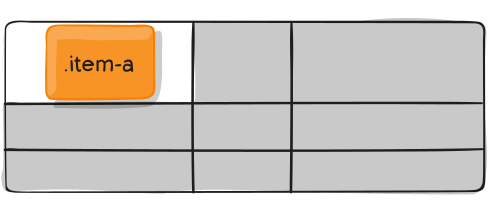
    Aligns a grid item inside a cell along the inline (row) axis (as opposed to align-self which aligns along the block (column) axis). This value applies to a grid item inside a single cell.


    Values:


    • start – aligns the grid item to be flush with the start edge of the cell
    • end – aligns the grid item to be flush with the end edge of the cell
    • center – aligns the grid item in the center of the cell
    • stretch – fills the whole width of the cell (this is the default)

    To set alignment for all the items in a grid, this behavior can also be set on the grid
    container via the justify-items property.


    Examples:

    .item-a {
    justify-self: center;

    }

    Exemples may be found here...

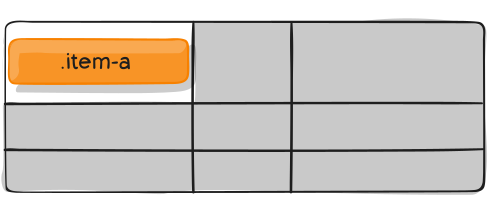
  8. align-self

    Aligns a grid item inside a cell along the block (column) axis (as opposed to justify-self which aligns along the inline (row) axis). This value applies to the content inside a single grid item.


    Values:


    • start – aligns the grid item to be flush with the start edge of the cell
    • end – aligns the grid item to be flush with the end edge of the cell
    • center – aligns the grid item in the center of the cell
    • stretch – fills the whole width of the cell (this is the default)

    To set alignment for all the items in a grid, this behavior can also be set on the grid
    container via the justify-items property.

    Examples:

    .item-a {
    align-self: center;

    }
    Exemples may be found here...

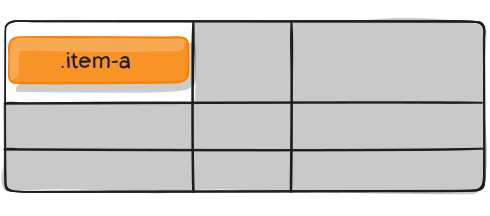
  9. place-self

    place-self sets both the align-self and justify-self properties in a single declaration.


    Values:

    • auto – The “default” alignment for the layout mode.
    • < align-self> / < justify-self> – The first value sets align-self, the second value justify-self. If the second value is omitted, the first value is assigned to both properties.
    Examples:

    .item-a {
    place-self: center stretch;

    }

    Exemples may be found here...

fr units

You’ll likely end up using a lot of fractional units in CSS Grid, like 1fr.
They essentially mean “portion of the remaining space”. So a declaration like:

grid-template-columns: 1fr 3fr;

Means, loosely, 25% 75%.
Except that those percentage values are much more firm than fractional units are.
For example, if you added padding to those percentage-based columns, now you’ve broken 100% width (assuming a content-box box model).
Fractional units also much more friendly in combination with other units, as you can imagine:

grid-template-columns: 50px min-content 1fr;

Sizing Keywords

When sizing rows and columns, you can use all the lengths you are used to, like px, rem, %, etc, but you also have keywords:

min-content: the minimum size of the content. Imagine a line of text like “E pluribus unum”, the min-content is likely the width of the word “pluribus”.
max-content: the maximum size of the content. Imagine the sentence above, the max-content is the length of the whole sentence.
auto:this keyword is a lot like fr units, except that they “lose” the fight in sizing against fr units when allocating the remaining space.
Fractional units: see above

Sizing Functions


The fit-content() function uses the space available, but never less than min-content and never more than max-content.
The minmax() function does exactly what it seems like: it sets a minimum and maximum value for what the length is able to be.

grid-template-columns: minmax(100px, 1fr) 3fr;

This is useful for in combination with relative units. Like you may want a column to be only able to shrink so far. This is extremely useful and probably what you want:

To prevent a Grid Blowout (read more):
Do this:
.grid {
display: grid;
grid-template-columns: repeat(3, minmax(10px, 1fr));
}
Instade of this:
.grid {
display: grid;
grid-template-columns: repeat(3, 1fr);
}

grid-template-columns: minmax(100px, 1fr) 3fr;

The min() function.
The max() function.

The repeat() Function and Keywords

The repeat() function can save some typing:

You may want to do:
grid-template-columns:
1fr 1fr 1fr 1fr 1fr 1fr 1fr 1fr;

You may do it by using repeat()
grid-template-columns:
repeat(8, 1fr);

You may do it by using repeat() and also do not miss the Blowout
grid-template-columns:
repeat(8, minmax(10px, 1fr));
Extra tips:
Function repeat() can get extra fancy when is combined with keywords like:

auto-fill: Fit as many possible columns as possible on a row, even if they are empty.
auto-fit: Fit whatever columns there are into the space. Prefer expanding columns to fill space rather than empty columns.

This bears the most famous snippet in all of CSS Grid and one of the all-time great CSS tricks...
Flexible Grid (read more):

Ex:
grid-template-columns:
repeat(auto-fit, minmax(250px, 1fr));
Also you may find usefull to read about the diference between auto-fill and auto-fit.
Read here...

Masonry

An experimental feature of CSS grid is masonry layout. Note that there are lots of approaches to CSS masonry, but mostly of them are trickery and either have major downsides or aren’t what you quite expect.
What Is A Masonry Layout? (Article here...)
A masonry layout is one where items are laid out one after the other in the inline direction. When they move onto the next line, items will move up into any gaps left by shorter items in the first line. It’s similar to a grid layout with auto-placement, but without sticking to a strict grid for the rows.

The most well-known example of masonry is on Pinterest, and you will sometimes hear people refer to the layout as a “Pinterest layout”.

Read here more articles below:
- Approaches for a CSS Masonry Layout
- Masonry Layout
The spec has an official way now, and this is behind a flag in Firefox:

.container {
display: grid;
grid-template-columns: repeat(4, 1fr);
grid-template-rows: masonry;
}

Subgrid

Subgrid is an extremely useful feature of grids that allows grid items to have a grid of their own that inherits grid lines from the parent grid.

.parent-grid {
display: grid;
grid-template-columns: repeat(9, 1fr);
}

.grid-item {
grid-column: 2 / 7;
display: grid;
grid-template-columns: subgrid;
}

.child-of-grid-item {
/* gets to participate on parent grid! */
grid-column: 3 / 6;
}

It’s also useful to know about display: contents;. This is not the same as subgrid, but it can be a useful tool sometimes in a similar fashion.

div class="grid-parent">

div class="grid-item">/div>

ul style="display: contents;">
!!! These grid-items get to participate on the same grid!
li class="grid-item">/li>
/ul>

/div>

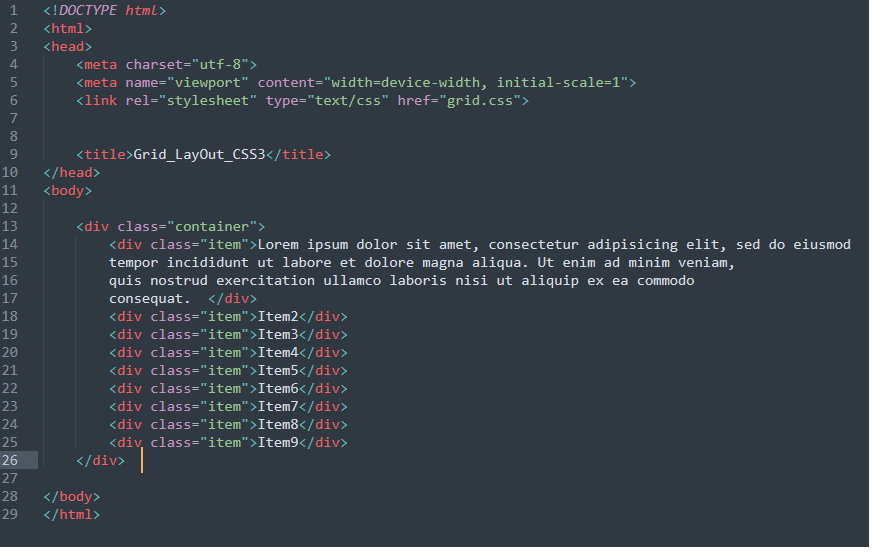
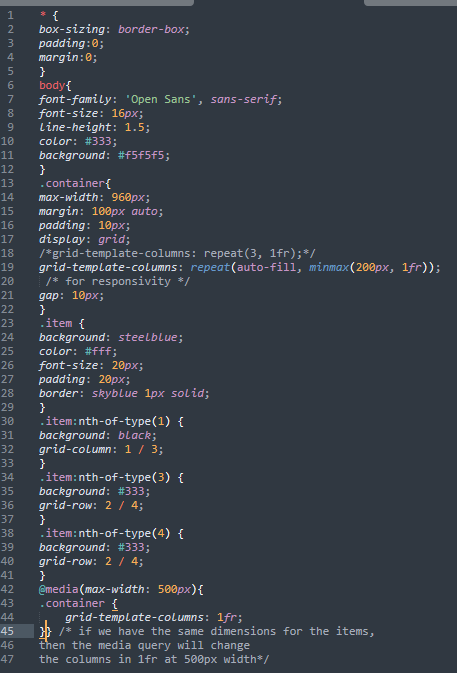
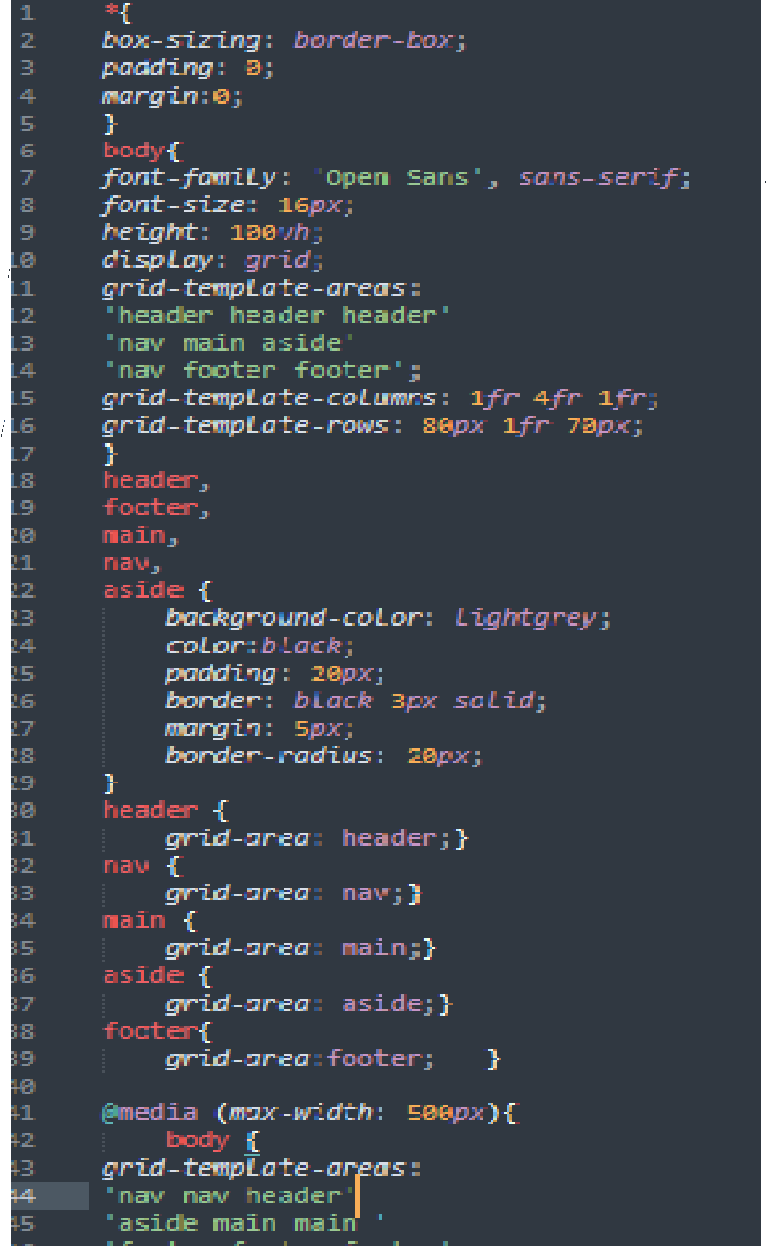
Below is an exemple of grid container with the html and css code

Lorem ipsum dolor sit amet, consectetur adipisicing elit, sed do eiusmod tempor incididunt ut labore et dolore magna aliqua. Ut enim ad minim veniam, quis nostrud exercitation ullamco laboris nisi ut aliquip ex ea commodo consequat.
Item2
Item3
Item4
Item5
Item6
Item7
Item8
Item9

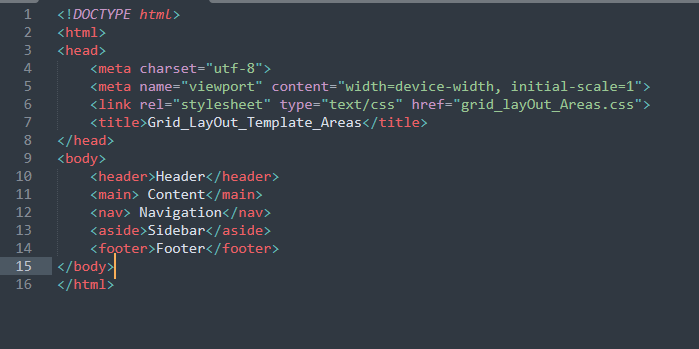
Below is an exemple of grid layout using grid-template-areas with the html and css code

Header
Content
Footer